Guide · Get promoted
Use Winsly from Claude or ChatGPT
Add a win from Slack or Jira without leaving Claude or ChatGPT, and ask about your wins, your bar and your review case in the same chat.
Your best work happens in Slack threads, Jira tickets and docs, and it’s gone from memory by review season. Connect Winsly to Claude or ChatGPT and you can add a win the moment it happens, without leaving the assistant you already use.
Add a win from wherever you work
With Slack, Jira or Google Drive also connected to your assistant, just say:
- “Log that launch as a win.”
- “Add the PAY-412 fix to my wins. It cut checkout errors by a third.”
- “Log the kudos Priya sent me in #launches.”
Your assistant reads the ticket or thread, pulls out what changed, the numbers, who it affected, when it happened and the link, and saves it to your wins log. Winsly tags it and links it to your Next Level bar the same way it does for any win, then tells your assistant which parts of the bar it now shows. If one question would make the win stronger, your assistant can ask you.
The win waits under Needs review, marked via Claude (or ChatGPT), until you check it. Edit it or remove it like any other win.
Logging wins from an assistant is on every plan, Free included.
Ask about your record
On Pro and Advisor, your assistant can also read your wins, your Next Level bar and your review case:
- “What’s my biggest gap for the next level?”
- “Draft my 1:1 notes from this month’s wins.”
- “Which of my wins show I can lead without authority?”
It can also read your profile and roles, and start an application for you to review in Winsly.
Send a meeting to Winsly
On Pro and Advisor, your assistant can bring a meeting in too, as Winsly’s Add a meeting does. With the transcript in your conversation, or in a notes or meeting-recorder app your assistant can reach, say:
- “Pull what matters for my next level out of this 1:1 and send it to Winsly.”
- “Read Thursday’s skip-level notes into Winsly.”
Winsly reads it and sends back cards: changes to your bar, wins, praise, next steps, people and names to keep private, each with the line it came from. Your assistant shows you every card and asks which to keep. Only what you confirm is saved: changes to your bar right away, and wins under Needs review, marked via Claude (or ChatGPT). If your assistant can only read (as on some ChatGPT plans), it gives you a link to finish on Next Level → Meetings. In Claude, you can also start from the Next level from a meeting prompt in Winsly’s connector menu.
Connect it
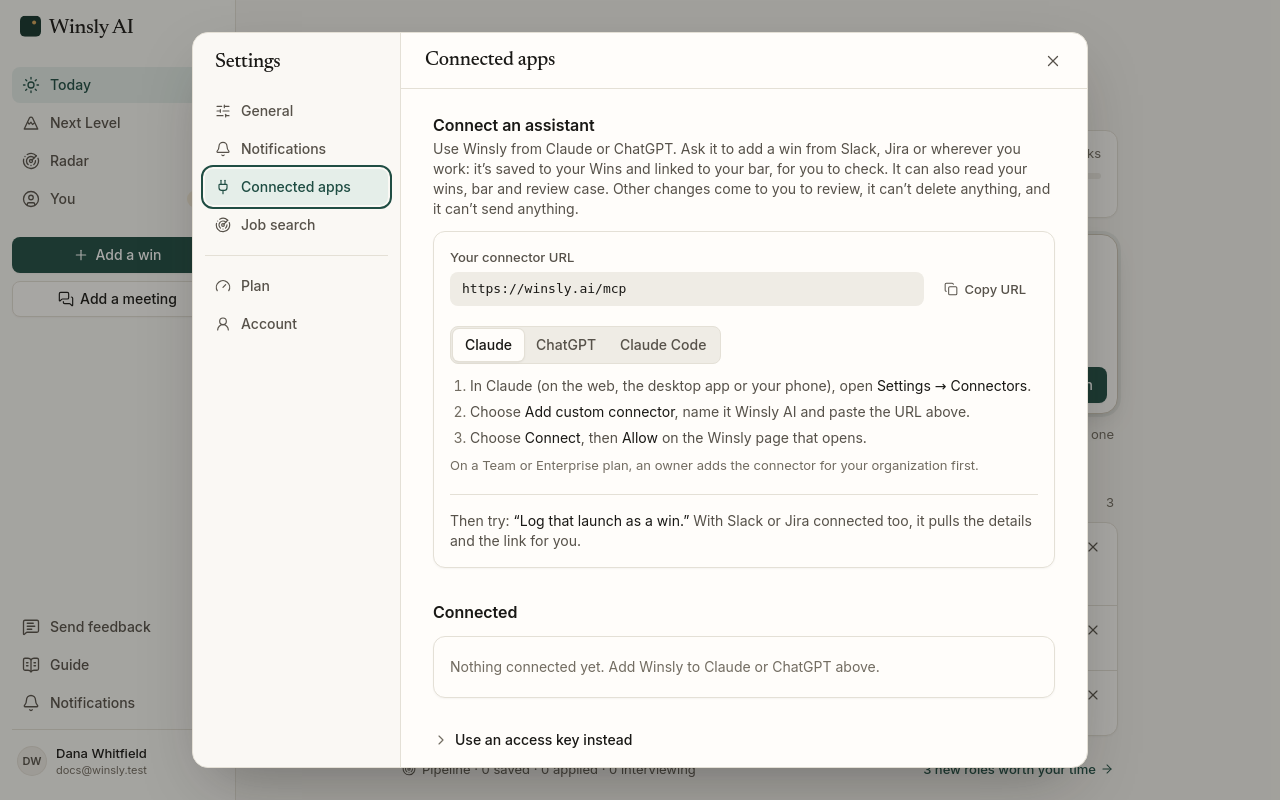
In Winsly, open Settings → Connected apps and copy your connector URL. Then:
- Claude (on the web, the desktop app or your phone): open Settings → Connectors, choose Add custom connector, name it Winsly AI, paste the URL and choose Connect. On a Team or Enterprise plan, an owner adds the connector for your organization first.
- ChatGPT (on the web): open Settings → Apps, turn on Developer mode under Advanced settings, choose Create app, name it Winsly AI, paste the URL and pick OAuth. On some ChatGPT plans, apps can read but not make changes, so ChatGPT can read your record there but not log wins.
- Claude Code: run the
claude mcp addcommand shown in Settings, then/mcpto sign in.
A Winsly page opens in a window. It shows which app is asking, where you’ll go back to, who you’re signed in as, and what the app will be able to do. Untick Let it log wins and make changes if you only want it to read (on Pro and Advisor; on Free, logging is what it does). Choose Allow, and Winsly sends you a note in the app and by email that it’s connected.
What it can and can’t do
- It logs a win only when you ask, and saves from a meeting only the cards you confirm. Other changes it suggests come to you to review in Winsly.
- It can’t delete anything, and it can’t send anything: not an application, not a message, not an email.
- What your assistant reads goes to that assistant’s company under your own agreement with them, the same as anything else you share with it.
Disconnect any time
Settings → Connected apps lists each app, what it can do and when it was last used. Disconnect ends it at once. If you get a note that an app was connected and it wasn’t you, disconnect it there.
See Your wins log for how wins are tagged and Privacy and trust for the promises that hold everywhere.